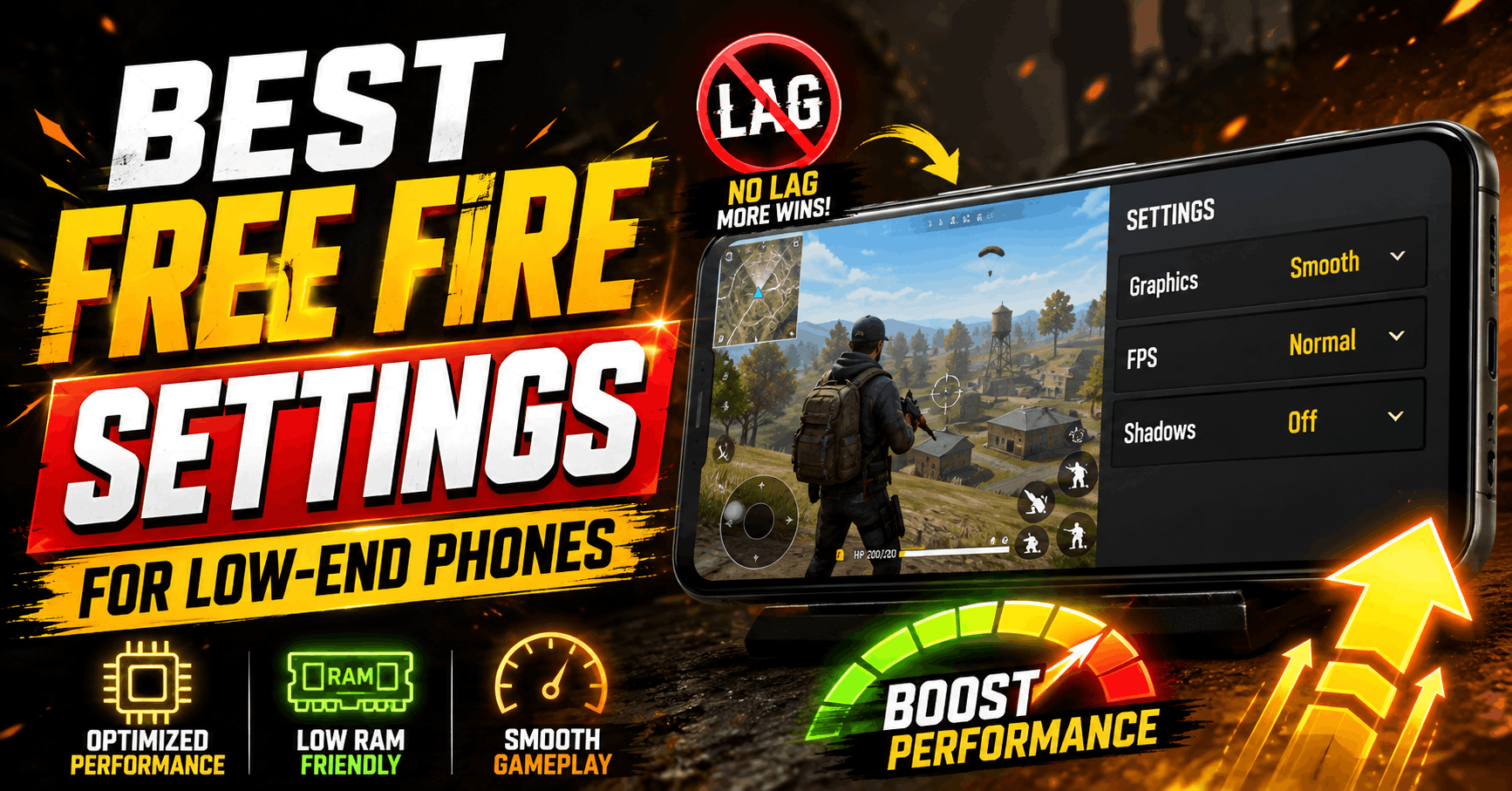
Playing Free Fire or Free Fire MAX on a low-end Android phone can become frustrating when the game starts stuttering during fights, FPS suddenly drops, or your phone becomes hot after a few matches.
The good news is that you usually don’t need a third-party “FPS booster,” modified APK, config file, or complicated DPI trick.
For most low-end phones, the safest starting point is:
| Setting | Recommended Setting |
|---|---|
| Graphics | Smooth |
| FPS / High FPS | Normal first |
| High Resolution | Off / Normal |
| Shadows | Off |
| Auto Scale | Off |
| Additional Effects | Low / Off |
| Background Apps | Close before playing |
If your phone stays cool and Free Fire remains stable after several matches, you can then test High FPS.
If enabling High FPS causes more heating, stuttering, battery drain, or frame drops, switch back to Normal.
The main objective on a low-end device isn’t achieving the highest possible FPS number. It is getting a stable and consistent frame rate during actual fights.
Best Free Fire Settings for Low-End Devices
Let’s go through each important setting individually.
1. Graphics: Smooth
The first setting you should change is Graphics.
Set:
Graphics → Smooth
Smooth graphics reduces the visual workload placed on your phone’s GPU.
Higher graphics settings may provide:
- sharper textures;
- better environmental details;
- improved lighting;
- enhanced visual effects.
However, those improvements also require more processing power.
On a budget or older smartphone, visual quality should usually be sacrificed in favour of consistent gameplay.
Garena also recommends lowering graphical quality when troubleshooting game lag.
2. High FPS: Start With Normal
High FPS is one of the most misunderstood Free Fire settings.
A higher frame rate can make:
- camera movement smoother;
- aiming feel more responsive;
- enemy movement easier to track;
- close-range fights feel better.
But only if your phone can maintain the higher frame rate consistently.
A weak processor may initially deliver higher FPS but begin slowing down as the phone gets hotter.
For genuinely low-end phones, start with:
High FPS → Normal
Garena’s own crash troubleshooting recommendations include:
- Smooth graphics;
- Normal FPS;
- Auto Scale Off.
Once Free Fire runs reliably, you can test High FPS.
When should you use High FPS?
Enable High FPS if:
- gameplay remains stable;
- your phone does not become excessively hot;
- battery drain remains reasonable;
- FPS does not collapse during fights.
Disable it again if you notice:
- frequent stuttering;
- sudden FPS drops;
- excessive heating;
- faster battery drain;
- game crashes.
The best FPS setting is the highest frame rate your phone can maintain consistently—not simply the highest option available.
3. High Resolution: Off or Normal
If your device shows a High Resolution or HD option, keep it disabled on weaker phones.
Recommended:
High Resolution → Off / Normal
Higher rendering resolution means your GPU needs to process more pixels.
It can make the game look sharper, but it generally provides little competitive advantage compared with maintaining smoother gameplay.
For low-end hardware:
Stable FPS > Better graphics
4. Shadows: Off
Disable shadows if your game version provides the option.
Recommended:
Shadows → Off
Shadows improve visual realism but create additional rendering work.
On a low-end phone, this extra visual detail is rarely worth sacrificing frame-rate stability.
5. Additional Effects and Filters
Filters mainly affect how the game looks.
They don’t turn a weak CPU or GPU into a faster one.
If Free Fire provides additional graphical effects, begin with:
Low / Off
Increase them only if your phone has enough performance headroom.
Keep in mind that Free Fire’s settings menu can vary depending on:
- game version;
- device;
- Android version;
- hardware capabilities;
- regional build.
Therefore, you may not see every option mentioned in this guide.
Best Free Fire Settings for 2GB, 3GB and 4GB RAM Phones
RAM alone does not determine Free Fire performance.
Two phones with 4GB RAM can perform very differently because gaming performance also depends on:
- CPU;
- GPU;
- storage speed;
- Android optimization;
- background apps;
- phone temperature.
Still, RAM can be useful as a rough starting point.
| Device | Graphics | FPS | Shadows | Main Priority |
|---|---|---|---|---|
| 2GB RAM / very weak phone | Smooth | Normal | Off | Maximum stability |
| 3GB RAM budget phone | Smooth | Normal → Test High | Off | Stability first |
| 4GB RAM budget phone | Smooth | Test High | Off | Smooth gameplay |
| Overheating phone | Smooth | Normal | Off | Reduce temperature |
| Phone crashing frequently | Smooth | Normal | Off | Stability |
Garena currently lists 1GB RAM as part of the minimum Android requirements for Free Fire and 3GB RAM among its recommended specifications.
However, meeting the minimum requirements does not guarantee perfectly smooth gameplay.
Recommended: Free Fire Max Best HUD Settings (2026) for Headshots & Claw Setup
A newer phone with 3GB RAM and a better processor can easily perform better than an older 4GB device.
Should You Enable High FPS on a Low-End Phone?
Instead of blindly copying someone else’s settings, test your phone.
Step 1: Start With Normal FPS
Use:
- Smooth graphics;
- Normal FPS;
- shadows off;
- High Resolution off.
Play at least one or two complete matches.
Pay attention especially during:
- close-range fights;
- squad fights;
- explosions;
- fast camera movement.
The lobby isn’t a good performance test because far less is happening on-screen.
Step 2: Enable High FPS
Now enable High FPS and play the same type of matches.
Check whether aiming and camera movement feel noticeably smoother.
Step 3: Keep Playing
Don’t judge performance after two minutes.
Some low-end phones perform well while cold but begin slowing down after several matches because of heat.
Play long enough to determine whether performance stays stable.
Step 4: Compare Stability
If High FPS gives smoother gameplay without major heating or stuttering, keep it enabled.
Otherwise:
Return to Normal FPS.
Why Does Free Fire Lag? Identify the Problem First
Players often call every performance issue “lag,” but there are actually several different problems.
Understanding which one you’re experiencing makes fixing it much easier.
1. FPS Lag / Frame Drops
Typical symptoms include:
- jerky camera movement;
- freezing animations;
- FPS dropping during fights;
- inconsistent camera movement;
- smoother performance after lowering graphics.
This usually points toward a device-performance problem.
Possible causes include:
- weak CPU;
- weak GPU;
- overheating;
- insufficient available RAM;
- too many background apps.
Lowering graphics can help with this type of lag.
2. Network Lag / High Ping
Network lag looks different.
Common symptoms include:
- enemies suddenly teleporting;
- shots registering late;
- other players freezing;
- delayed movement;
- high ping;
- frequent disconnections.
Garena says unstable internet connections can cause lag and disconnects and describes approximately 150ms or below as an ideal ping target, with lower generally being better.
If your ping suddenly rises, lowering graphics probably won’t fix the issue.
Instead, check your connection.
3. Heat-Related Lag
Another common situation looks like this:
First match runs smoothly → phone gets hot → later matches start stuttering
That can indicate thermal throttling.
When smartphones become too hot, they may reduce CPU and GPU performance to control temperature.
Garena recommends:
- lowering graphical quality;
- closing unnecessary applications;
- avoiding excessive multitasking;
- avoiding gameplay while charging when overheating is a problem.
Also Read: Best Gun in Free Fire for Headshot (2026) – Highest Damage Weapons
If your phone becomes noticeably hot while playing, reducing the workload can sometimes produce better sustained performance than pushing for maximum FPS.
How to Reduce Free Fire Lag Without Third-Party Apps
Before installing any “game booster,” try these practical fixes.
1. Close Background Apps
Before launching Free Fire, close unnecessary applications such as:
- YouTube;
- Instagram;
- Facebook;
- browsers with multiple tabs;
- other games;
- background downloads.
These applications can consume RAM, processor resources, bandwidth, or all three.
Garena also recommends closing background applications when troubleshooting game lag.
2. Restart Your Phone
If Free Fire suddenly starts performing worse than usual, restart the device.
A restart can clear temporary processes and give the game a cleaner starting environment.
After restarting:
- Wait for Android to load completely.
- Avoid opening unnecessary apps.
- Launch Free Fire directly.
3. Clear Free Fire Cache
Temporary cached files can occasionally contribute to unusual behaviour after updates or extended use.
On many Android phones, the process is roughly:
Settings → Apps → Free Fire / Free Fire MAX → Storage → Clear Cache
The exact menu differs between Samsung, Xiaomi, Realme, Vivo, Oppo, Motorola and other manufacturers.
Be careful not to accidentally choose:
Clear Data / Clear Storage
unless you understand what that option removes.
4. Keep Android Updated
Check whether your phone has pending Android or system updates.
Manufacturers sometimes include:
- bug fixes;
- stability improvements;
- graphics-driver updates;
- performance improvements.
An update won’t magically make old hardware powerful, but keeping the device software current is still sensible.
5. Pause Downloads While Playing
Before starting Free Fire, pause:
- Play Store updates;
- video downloads;
- cloud backups;
- large file downloads;
- software updates.
Downloads can use both your internet bandwidth and system resources.
This becomes especially important if you’re playing on mobile data or a slower Wi-Fi network.
6. Avoid Playing While Charging if Your Phone Overheats
Gaming while charging can increase heat generation.
On a low-end or older smartphone, additional heat can contribute to performance reduction.
If your phone becomes excessively hot:
- Stop charging.
- Lower Free Fire graphics.
- Use Normal FPS.
- Remove unnecessary background apps.
- Allow the phone to cool before another long gaming session.
7. Use Built-In Gaming Mode
Many phones include their own gaming tools, such as:
- Game Mode;
- Game Space;
- Game Turbo;
- Gaming Assistant.
These features may help:
- suppress notifications;
- prevent accidental interruptions;
- prioritize the active game.
However, avoid assuming every downloadable “RAM cleaner” or “FPS booster” will improve gaming performance.
Garena itself warns that many performance-enhancement applications provide little or no useful improvement.
Does Free Fire Sensitivity Reduce Lag?
No. Sensitivity settings do not increase FPS.
Sensitivity controls how quickly your:
- crosshair;
- camera;
- scope
moves in response to finger movement.
It does not increase your processor or GPU performance.
Many Free Fire guides combine “lag settings” with “headshot sensitivity settings,” but they solve completely different problems.
A poor sensitivity configuration can make low FPS feel worse because aiming becomes difficult, but changing sensitivity will not solve actual frame drops.
How to Set Your Sensitivity Properly
Instead of copying random sensitivity numbers from another phone:
- Fix your graphics and FPS settings first.
- Open Training mode.
- Adjust General sensitivity.
- Test horizontal tracking.
- Try small upward drag movements.
- Lower sensitivity if you regularly overshoot enemies.
- Increase it slightly if your crosshair consistently stops short.
- Change one option at a time.
Your ideal sensitivity depends on:
- screen size;
- touch sampling;
- display response;
- FPS stability;
- personal drag technique.
That is why one person’s “perfect headshot sensitivity” may perform badly on your device.
Should You Change DPI for Free Fire?
Changing Android DPI is frequently promoted as a Free Fire performance trick.
However:
Changing DPI is not a real FPS upgrade.
DPI mainly changes the scale and size of interface elements displayed by Android.
It doesn’t transform your processor or graphics chip.
For most players, adjusting Free Fire’s built-in:
- sensitivity;
- HUD;
- button size;
- graphics settings
is easier and safer than modifying Android display density.
Avoid GFX Tools, MOD APKs and Config Hacks
Be careful with videos or websites promising things like:
- “120 FPS unlock”
- “zero lag config”
- “auto headshot config”
- “anti-lag MOD”
- “magic GFX tool”
- modified Free Fire APKs
Garena’s anti-hack rules prohibit unauthorized third-party programs or modified clients that provide functionality not available through the official game.
Avoid:
- modified APK files;
- scripts;
- game-client modifications;
- config hacks;
- unauthorized FPS unlockers;
- applications offering unfair gameplay advantages.
Use the official Free Fire client and its built-in settings whenever possible.
Free Fire Still Lagging on Smooth Graphics? Try This
If you’ve already selected Smooth graphics and still experience lag, troubleshoot in this order.
Step 1: Check Your Ping
When the lag appears, look at your network ping.
If the ping rises significantly, focus on your internet connection.
If ping remains stable but your screen stutters, the problem is more likely related to hardware or temperature.
Step 2: Apply the Stability Settings
Use:
- Graphics: Smooth
- FPS: Normal
- Shadows: Off
- High Resolution: Off
- Visual Effects: Low
- Auto Scale: Off if available
Test again.
Step 3: Restart and Close Apps
Restart your phone.
Then open Free Fire without launching other resource-heavy applications.
Step 4: Check Phone Temperature
If Free Fire runs smoothly when the phone is cold but becomes laggy after 15–30 minutes, temperature may be a major factor.
Reduce graphics and FPS load.
Step 5: Free Storage and Clear Cache
Very limited free storage can make an already weak device more difficult to use.
Delete:
- unused apps;
- unnecessary videos;
- old downloads;
- temporary files.
Clear Free Fire’s cache if required.
Step 6: Accept the Hardware Limit
There is eventually a point where no software setting can completely compensate for weak hardware.
The limitations may be caused by:
- an old entry-level processor;
- weak GPU;
- insufficient RAM;
- degraded battery;
- sustained overheating;
- slow internal storage.
Be skeptical of anyone promising “100% lag-free Free Fire” on every phone.
No setting can guarantee that.
Free Fire vs Free Fire MAX on Low-End Devices
Free Fire MAX provides a more visually enhanced version of the Free Fire experience.
For users in India, Free Fire MAX is currently available through Google Play.
However, low-end-device players should pay attention to the version they’re running.
Available graphics and frame-rate settings can change based on:
- hardware;
- operating system;
- Free Fire version;
- device support;
- regional availability.
If your phone doesn’t display a certain FPS or graphics option, avoid third-party tools designed to force unsupported features.
Best Free Fire Low-End Device Settings: Quick Summary
If you don’t want to change dozens of options, use this setup first:
| Setting | Best Starting Point |
|---|---|
| Graphics | Smooth |
| FPS | Normal |
| High Resolution | Off / Normal |
| Shadows | Off |
| Extra Effects | Low / Off |
| Background Apps | Close |
| Downloads | Pause |
| Play While Charging | Avoid if heating |
| GFX / Config Tools | Avoid |
Once Free Fire runs reliably, test High FPS.
If High FPS remains smooth during fights and longer gaming sessions, keep it enabled.
If the phone starts overheating or stuttering, switch back to Normal.
Final Recommendation
There is no single “magic” Free Fire setting that can make every low-end Android phone run perfectly.
For most weaker devices, the best approach is:
Smooth Graphics → Normal FPS → Shadows Off → High Resolution Off → Close Background Apps → Control Heat → Test High FPS
Always prioritize consistent gameplay over maximum graphics or an impressive FPS setting.
Most importantly, don’t confuse sensitivity settings with performance optimization and don’t rely on unofficial tools promising impossible improvements.
A stable 30–45 FPS experience will often feel better during an actual fight than constantly fluctuating performance that occasionally reaches a higher FPS.
Frequently Asked Questions:
What are the best Free Fire settings for a low-end phone?
Start with Smooth graphics, Normal FPS, shadows disabled and High Resolution turned off. Close unnecessary applications before playing. Once performance is stable, you can test High FPS.
Should High FPS be enabled on a 2GB RAM phone?
Start with Normal FPS. Some 2GB phones may handle High FPS reasonably while others won’t because CPU and GPU performance differs considerably between devices. Test High FPS only after achieving stable gameplay.
Does Smooth graphics reduce Free Fire lag?
Smooth graphics can reduce device-side frame drops because the GPU needs to process fewer graphical details. Garena also recommends lowering graphics when troubleshooting lag.
Can sensitivity settings increase FPS?
No. Sensitivity only changes how quickly your aim and camera react to touch input. It does not increase CPU or GPU performance.
Why does Free Fire lag even with fast internet?
You may be experiencing FPS lag or thermal throttling rather than network lag. If ping remains stable while the picture stutters, check graphics settings, background applications and phone temperature.
What ping is good for Free Fire?
Garena describes approximately 150ms or below as an ideal target, although lower latency will generally provide a better experience.
Can GFX tools increase Free Fire FPS?
Some tools claim to change graphical settings, but players should avoid applications that modify the game client or provide unauthorized functionality. Stick to the official game’s graphics settings.
Why does Free Fire lag after a few matches?
Heat may be the cause. Phones can reduce CPU and GPU performance after becoming hot. Try Smooth graphics, Normal FPS, closing background applications and avoiding gameplay while charging.