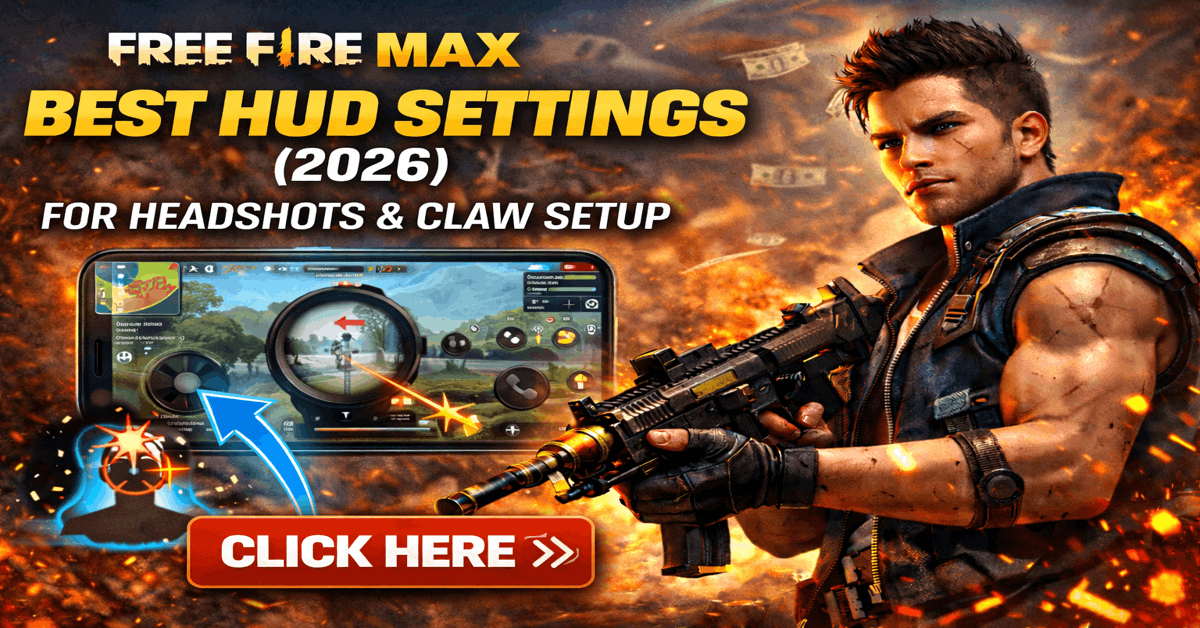
If you’re struggling with slow reactions, missed headshots, or uncomfortable controls, your HUD settings in Free Fire Max might be the real problem.
Many players focus only on sensitivity but ignore HUD customization — and that’s a big mistake.
The right Free Fire Max best HUD settings can:
- Improve your reaction time
- Increase headshot accuracy
- Make drag shots smoother
- Reduce finger movement delay
- Improve overall gameplay comfort
In this complete 2026 guide, you’ll learn the best HUD layouts for different playstyles, screen sizes, and skill levels.
What Is HUD in Free Fire Max?
HUD (Heads-Up Display) refers to the on-screen control layout — including:
- Fire button
- Movement joystick
- Scope button
- Jump & crouch
- Gloo wall
- Weapon switch
Customizing your HUD allows you to adjust button size and position for faster and more accurate gameplay.
Pro players NEVER use default HUD.
Why HUD Settings Matter in Free Fire Max
A poorly designed HUD can cause:
- Slow reactions
- Misclicks
- Poor headshot accuracy
- Clumsy movement
A well-optimized HUD gives:
- Faster drag headshots
- Smooth aim transitions
- Quick gloo wall placement
- Better close-range fights
HUD setup directly affects your performance.
Free Fire Max Best HUD Settings (Recommended Layout)
Below is a balanced HUD layout suitable for most players:
🔥 Fire Button Size: 65% – 75%
Large enough for smooth drag shots but not too big to block vision.
🎯 Scope Button Size: 55% – 65%
Medium size helps in quick scope switching.
🕹 Movement Joystick: 100% (Default)
Keep it full for better movement control.
🧱 Gloo Wall Button: 70%
Easy to access during close combat.
🤸 Jump & Crouch: 55% – 65%
Position them close to fire button for quick combo moves.
Best HUD Settings for 2 Finger Players
If you play with two thumbs (most beginners):
Recommended Setup:
- Fire Button: Right side, 70% size
- Jump/Crouch close together
- Gloo Wall slightly above fire button
- Scope button near top right
Keep layout simple to avoid confusion.
Two-finger players should prioritize comfort over advanced control.
Best HUD Settings for 3 Finger Players (Claw Setup)
Claw setup gives faster reaction and better control.
Recommended 3-Finger Layout:
- Main Fire Button (Right) – 65%
- Secondary Fire Button (Left top) – 55%
- Jump & Crouch near right thumb
- Gloo Wall near left index
This setup allows:
- Instant drag shots
- Faster peek fights
- Better movement control
Most semi-pro players use 3-finger claw.
Best HUD Settings for 4 Finger Claw Players
Professional-level control.
Suggested Layout:
- Left Index: Fire button
- Right Index: Scope + Gloo wall
- Right Thumb: Jump/Crouch
- Left Thumb: Movement
Button sizes: 55% – 65% for better precision.
This setup provides:
- Fast reaction
- Smooth drag control
- Instant gloo wall placement
- Better ranked performance
But it requires practice.
How to Customize HUD in Free Fire Max
Follow these steps:
- Open Free Fire Max
- Go to Settings
- Click on Controls
- Tap Custom HUD
- Adjust button size and position
- Save and test in Training Ground
Always test before jumping into ranked matches.
Best HUD Settings for Headshots
If your goal is maximum headshots:
- Increase fire button size to 70%
- Keep fire button slightly lower for smooth upward drag
- Avoid placing buttons too close
- Maintain clear screen visibility
Proper button placement improves drag accuracy.
Common HUD Mistakes to Avoid
❌ Using Default Layout
Default HUD is not optimized for competitive play.
❌ Oversized Buttons
Too large buttons block enemy visibility.
❌ Changing Layout Frequently
Muscle memory takes time to build.
❌ Copying Pro Players Exactly
Their screen size and hand position may differ.
Best Screen Layout Tips for Different Devices
Small Screen Phones (5.5–6 inches)
- Keep buttons slightly bigger
- Avoid top-corner placements
Large Screen Phones (6.5+ inches)
- Spread buttons slightly
- Use claw setup for better control
Device size matters more than you think.
HUD vs Sensitivity: Which Is More Important?
Both work together.
- Sensitivity controls screen speed
- HUD controls physical movement
Even perfect sensitivity won’t help with poor HUD placement.
Optimize both for best results.
Pro Tips to Improve Gameplay with Better HUD
✔ Practice daily in Training Ground
✔ Adjust slowly (2–3% size change)
✔ Build muscle memory
✔ Keep layout clean
✔ Focus on comfort
Consistency improves performance.
Frequently Asked Questions
What is the best HUD size in Free Fire Max?
Fire button between 65–75% works well for most players.
Is claw better than 2-finger setup?
Yes, claw offers faster reaction and better control but requires practice.
Can HUD improve headshot rate?
Yes, proper fire button placement helps smoother drag shots.
Final Thoughts
The Free Fire Max best HUD settings are not universal — they depend on your device, playstyle, and comfort level.
But one thing is clear:
Players who customize their HUD perform better than those who don’t.
Take time to experiment, practice consistently, and avoid copying blindly.
Your perfect HUD is the one that feels natural and improves your reaction speed.
Master your layout — and your gameplay will automatically improve.
Frequently Asked Questions (FAQs)
1. What are the best HUD settings in Free Fire Max?
The best HUD settings in Free Fire Max depend on your playstyle, but most players prefer a fire button size between 65–75%, properly spaced jump and crouch buttons, and easy access to the gloo wall button for faster reactions.
2. What is the best fire button size for headshots in Free Fire Max?
For smoother drag headshots, a fire button size between 65% and 75% works well for most players. It allows better upward drag control without blocking too much screen visibility.
3. Is 2-finger or claw HUD better in Free Fire Max?
Claw (3-finger or 4-finger) HUD is generally better for competitive gameplay because it allows faster reaction time and better movement control. However, beginners may find 2-finger setup more comfortable initially.
4. How do I customize HUD settings in Free Fire Max?
To customize HUD in Free Fire Max:
- Go to Settings
- Select Controls
- Tap on Custom HUD
- Adjust button size and position
- Save and test in Training Ground
Always test changes before playing ranked matches.
5. Can HUD settings improve headshot rate in Free Fire Max?
Yes. Proper fire button placement and size can significantly improve drag shot accuracy and reaction speed, which helps increase headshot percentage.